So you want to become a Wedding DJ
Start with a small birthday party and work your way up to a grand wedding.

This is a course for private events. Someone has handed you a room, and a family that will remember the afternoon. The day can be one hour. The day can be the whole evening. PowerBox DJ holds the music, the event, and the playlist you perform from.
Do the short version for a small birthday party. Keep every list you liked. A grand wedding is the same work with more moments on the same event, and the same feeling of being trusted with the day.
The music is already on the computer, the songs you would reach for if a parent leaned in and named one. Open PC Browser. Browse to the folder, or type the path. The box beside the path searches that folder. Double-click a folder to scan every folder under it. The music it finds is added to the library. Playlists it finds come in too. Add to active collection keeps that folder on the collection you have open.
Press F1 for Collections. A collection is a workspace you can come back to when the next party feels like this one. Add one and name it for the work in front of you, such as Kids Parties. The menu beside the collection list adds, edits, deletes, and clones a collection. A second collection can be Weddings when that day is yours. Turn on only the lists you are using.
Music Library is every song in the database. All Boxes is the songs sitting in the boxes of the collection you have open.
Adding the folder reads the tags on the files. Leave the software be. It analyzes BPM, audio features, key, and signature while you get the party ready.
A parent will want something the kids can dance to, then something the room can sit through. That is the BPM, the audio features, the key, and the signature the software wrote while it sat. The Analyze menu is on Selected, on what is Visible, on the Collection, and on the whole Library. A right-click opens it.
Click the spinner to open Processes. That list shows files being added, tags being read, and analysis. The playlist keeps playing while those jobs run. A large analyze asks you to confirm before it starts.
Think of the afternoon as feelings in a row. The cake is one song the whole room will sing. Games are a stretch where you reach for whatever fits the kids in front of you. Categorize the songs into boxes for those stretches. Then compile or curate a playlist when the moment needs an order.
A box is a pool. The songs in it are distinct, and the box has no play order. A playlist is an order. The same song can appear on a playlist more than once. The cake song and then the dance belong on a playlist. Games or dinner belong in a box you pull from.
On Boxes, Open Wizard. Search the names, tick the ones this workspace needs, and add them. Birthday offers Arrival, Mix, Happy Birthday, Cake, Dancing, and Last Dance. Children's Party offers Arrival, Games, Cake, Mix, and Closing. Rename any name that does not fit the room, so the list sounds like this child's party.
The other side of the Box Wizard is crates by kind of music: Genre, Decade, Mood, Energy, Speed, Dance Style, People, and more. People includes Kids and Children. Decade runs from the 1940s through the 2020s. A grandparent's song and a kid's song can live in the same library and still be easy to find.
Select the songs and choose Send to Box, or drag the songs onto the box. Click the box and the library shows that pool. A box can also filter the library. The choices are Nothing, OR, AND, NOT, and ADD. OR keeps a song that sits in any of those boxes. AND keeps a song that sits in every one of them. NOT leaves that box out. ADD puts those songs back in.
Audio Features is a low and a high on each feel. Set Energy high for dancing, when the room wants to move. Leave games and food in a lower range, when people are still around the table. The Key Wheel keeps the library on the keys you click, so the next song can sit next to the one that is on. You still pick the song.
The Exp column shows an E when the song is explicit. Leave those out of a kids party. The Rating column is there when you want the songs you trust to stand out. Search sits on the library. Wild search treats each word on its own, so a few words of a title are enough when someone only remembers a piece of it.
A parent has said yes, and the day needs a name before you walk in. Open Events Manager. The events are on the left. The month is on the right. The list can be all, future, happening now, later today, or past. Search sits under the list. Right-click a date to put the event on that day.
Choose Add event wizard. Four steps.
Event Type. Birthday is there. So are Party, Anniversary, and Wedding. Settings keeps types you add yourself. For the first job, pick Birthday. That is the room where you learn this work.
Event Info. Name, start, end, and place. Contact is who to call. Status is Confirmed, Tentative, or Cancelled. Check-in is the time to reach the booth. Setup is the time to get the gear ready. A reminder can sit ahead of the start. Order is which event comes first when two share a time. Notes are yours: the child's name, a song that must play, a song that must not, the time the party ends. Write them while the parent is still on the phone. Text, Back, and Highlight color the list and the calendar.
Event File. PowerBox DJ makes one file for this event and opens it in the built-in viewer. The sheets are Event Info, Full Timeline, DJ Timeline, VIPs, Speeches, Service Providers, and Contract, plus a sheet named for the type. Event Info repeats the editor and stays locked. Double-click a row there to open the editor. Full Timeline is the run of show. DJ Timeline is that same sheet, filtered to rows with a DJ value, and it stays locked because the edit belongs on Full Timeline. Contract columns are Rate, Qty, Sub, and Total. Those totals are calculated line items. The file is what you open when the day gets busy and you need the promise in writing.
Event Flow. A playlist is ordered songs for a moment. A box is a pool for a stretch. The checks start off. Tick only what this party has. For a small birthday party that is often Birthday Games, Cake Cutting, Birthday Dance, Open Dancing, and Last Dance. Cake Cutting, Birthday Dance, and Last Dance come in as playlists. Birthday Games and Open Dancing come in as boxes. Leave Cocktail Hour off when the party has none. All and None are on the step. Done creates the event, the file, and the lists you kept. What you tick is the afternoon this child will actually have.
The calendar draws the event. Today has a red line on the top and the bottom. Click a date for that day's events. Clone copies an event and everything on it, so the next birthday starts from this one. Delete removes the event and everything on it. Double-click an event to edit it.
A feed named PowerBox DJ Calendar can go to your phone, so the day is with you while you load the car. Email calendar link sends the address. Open the mail on the phone and subscribe.
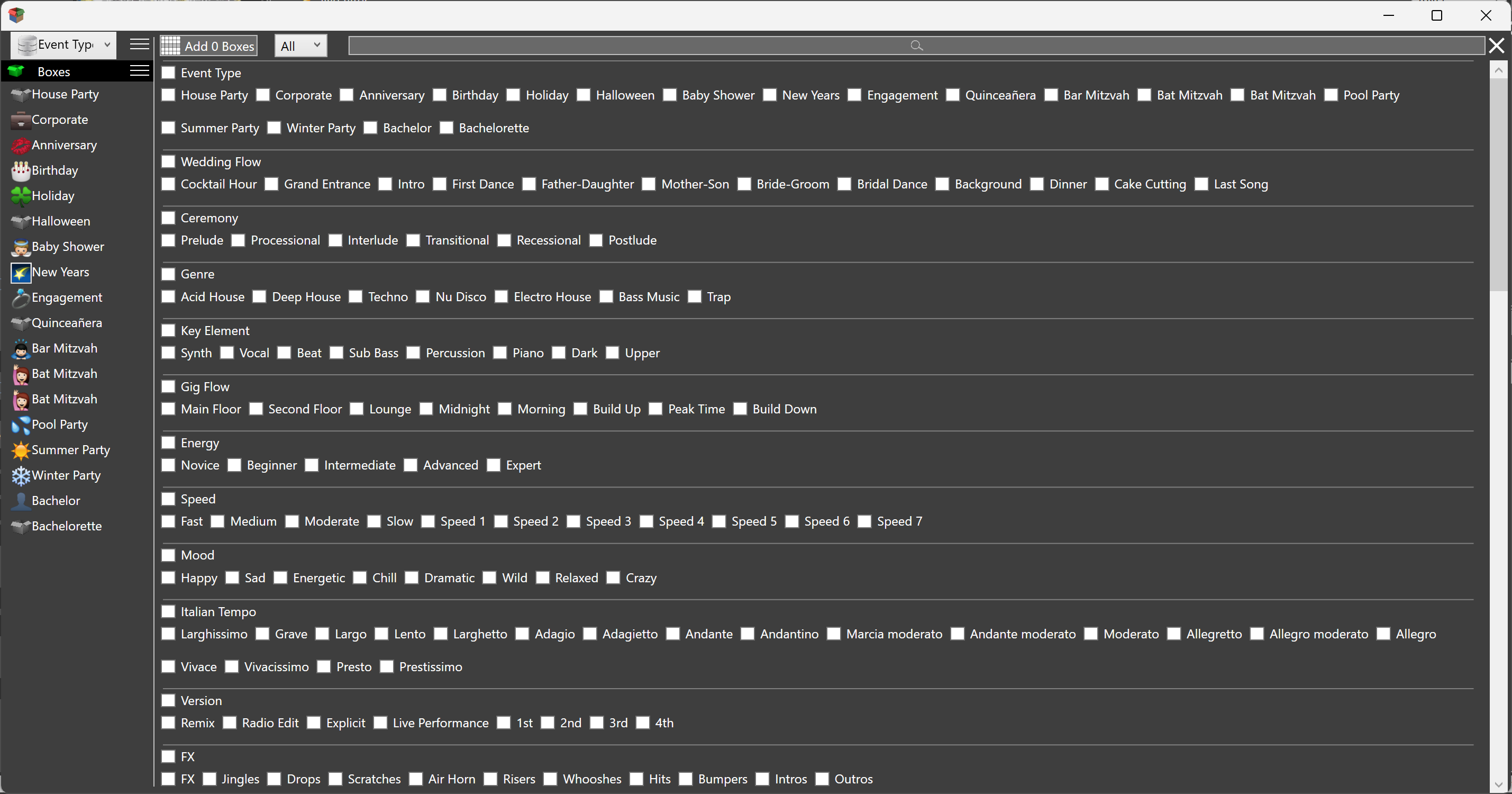
The wizard already made the playlists and boxes you ticked. They are empty, waiting for the songs that belong to this child. Drag songs from the library onto a playlist or a box. A playlist keeps the order you add. A box stores each song once.
You can build the lists in Collections first and drag them onto the event. An M3U playlist dragged onto the event moves onto that event. A collection box dragged onto the event does the same. Music Library and All Boxes stay in the collection.
Open Box Wizard from the event when you want the ready-made names, such as Happy Birthday or Cake. A name the app treats as an ordered moment is saved as a playlist. Cake and Last Dance are playlists. A name it treats as a stretch is saved as a box. Mix, Games, and Dancing are boxes. You can also add a blank playlist or a blank box and rename it.
Click the playlist on the event. The library shows those songs in that order, and an Event Song Note sits on each row. The same song can carry a different note in another list. Write who the song is for. On the cake playlist, the note can be the name they will sing. That name is what you want in front of you when the room goes quiet.
An event note is text beside the lists. A note can also be read as a list of searches: one line, and the first match from the library. A half-remembered title from the parent can live there until the song is certain.
When the cake song ends, you are looking at the family. Click the event playlist so the library is that order. Drag those songs onto the playlist deck, or select them and choose Send to Playlist, then Bottom. Enter does the same as Bottom. Ctrl+Enter puts them at the top.
Press play. A playlist starts on Mix Next. When the song reaches the end, PowerBox DJ fades into the next song on the list. You chose the songs and the order. The fade is the hand-over, and the room stays in the moment. Mix length is how long that fade takes.
The other choices sit on the same control. Play Next cuts to the next song. Stop ends on this song. Loop 1 repeats it. DJ waits so you can fade by hand, when that hand-over should be yours.
Simple Player is the small row on that deck: Restart, Play/Pause, Stop, Previous, and Next, with meters and the wave.
A Power Command runs when the song before it ends. Use Insert Mixer Flag Command on the playlist, or add the command from the Power Commands panel. A playlist command can start or stop a playlist, loop the song or the whole list, fade into the next song, or skip. Playlists are numbered 1 through 10, and a command can start any one of them. A mix command sets how this song hands over. Mix length on that row is 1 to 20 seconds. A sample command starts or stops a sampler slot. A clock command starts or stops a watch or a timer. Put dinner on one playlist and dancing on the next. A command after the last dinner song starts the dancing playlist, the moment people stand up.
Full DJ Deck is the same song with the full player: cues, loops, tempo, key, and two decks side by side when you want to pick the next song yourself. Beat Sync matches the BPM of a deck to the deck that is playing. Auto mix plays the list you already trusted before the lights came up.
While a list is running, search still works. Someone will call out a song. Click a box to make that pool the library, pick the request, and send it to the playlist.
A longer day uses the same wizard. Two people will remember the song that played when they walked in, and the one that played for their first dance. Pick Wedding on step 1. On the last step, tick the moments this wedding has.
These come in as playlists, because the moment has an order and the room is waiting on it: Processional, Bridal Walk, Recessional, Grand Entrance, Bridal Party Introductions, First Dance, Father / Daughter Dance, Mother / Son Dance, Cake Cutting, Bouquet Toss, Garter Toss, and Last Dance.
These come in as boxes, because the stretch is a pool: Ceremony Prelude, Cocktail Hour, Dinner, Dinner Service, and Open Dancing.
The Event File for a wedding adds a Ceremony sheet. Full Timeline is the whole day. Mark the rows that are yours and they show on DJ Timeline. Speeches and VIPs are sheets in the same file. The Event Song Note on the processional playlist is who walks in on that song, the name you want when the doors open. The event notes hold the names, the songs that must play, and the songs that must not.
Box Wizard on the wedding has the same idea under its own names: Prelude, Processional, First Dance, Father-Daughter, Mother-Son, Dinner Service, Cocktail Hour, Cake Cutting, Last Dance, and the rest. Add the ones this couple uses. A name such as First Dance or Processional is saved as a playlist. Cocktail Hour, Dinner Service, and Background are saved as boxes.
Cocktail hour and dinner can be a playlist on Mix Next while you are with the couple, the hour you are away from the booth and the music still has to feel cared for. Open Dancing can stay a box you pull from, or a playlist you put in an order you trust. Both already live on the event. Send the one you want to the deck and leave Mix Next on.
After the night, Session History is what played. The history calendar is that past, the day you just gave them. The events calendar is what is coming, the next family.
A small birthday party can be a few songs and one playlist. A grand wedding can be a full day of lists. The preparation is the same steps. The event is as long as the booking, and as short as the moments you tick.
 Download Now