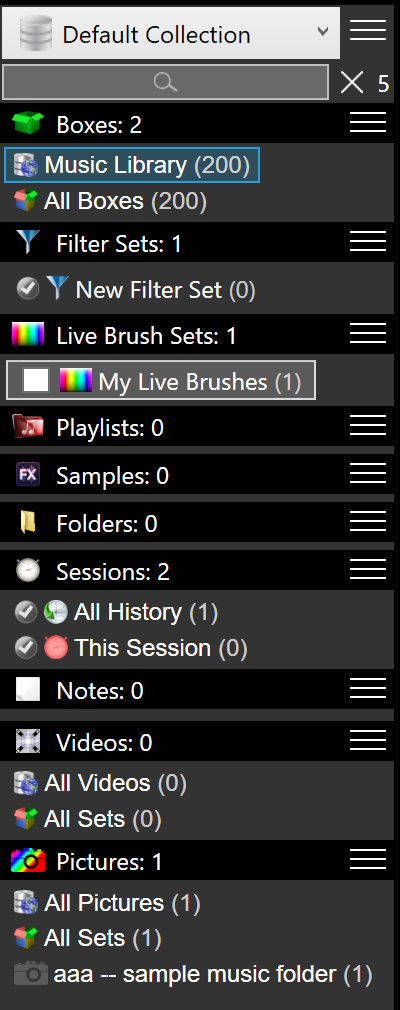
Everyday music prep and gig prep are different jobs, and sorting one kind of music from another is a third, but all of those lists sit in one place.
Each task has its own workspace. Turn on what you want to see, then work on that and only that. While you perform, a search shows matches from the items that are on. The types are Boxes, Smart Filters, Smart Color Coding, M3u Playlists, Sample Sets, Folders, Session History, Notes, Video Sets, and Picture Sets.
Press keyboard shortcut F1 to quickly show or hide the Collections panel.
Collections
We start with a combo box of collections. You can have as many as you want. Click on it to see all the collections you have and select a collection you want to work with. To the right of it is a menu to Add a new collection, Edit selected collection, Delete selected collection, and Clone selected collection. Under that is a list of all the items you can show or collapse with a simple click.
Smart Search
Search for any item by name or by search tags.
Boxes
Boxes bring their own unique way to categorize music. Each Box can have its own icon for fast identification. In essence, a Box is a list of distinct songs. Each list of boxes has two items: Music Library, which is the entire music library database, and All Boxes, which looks at all the distinct songs from all the boxes of the active collection. Each box can be used as a pool filter where the entire list of songs is used as a way to filter the library by a matching rule. OR, AND, NOT, ADD.
Box Wizard
On Boxes, Open Wizard is a picker of box names. It can add them to the collection that is open, or to an event. The same window can make, edit, delete, or clone a box, and make, edit, delete, or clone a collection.
A wedding includes Prelude, Processional, Interlude, Recessional, Postlude, Cocktail Hour, Grand Entrance, First Dance, Father-Daughter, Mother-Son, Dinner Service, Party/Dancefloor, Cake Cutting, and Last Dance, among others. House parties, corporate jobs, and the other event types are in the same wizard.
The other side is tag crates: Genre, Key Element, Energy, Speed, Mood, Italian tempo marks, Version, FX, Dance Style, Decade, Region, People, and the working sets for mobile, open-format, radio, and bar DJs. Decade runs from the 1940s through the 2020s. Dance Style includes hora, salsa, waltz, swing, and others.
Search the names. Tick the ones this workspace needs. Add them. Rename any that do not fit the room.
Smart Filters
A Smart Filter is a saved group of rules on the song list. You turn it on to match any, match all, leave songs out, or add songs.
New Smart Filter adds one blank set, left off, with an empty rule ready to fill in.
The Smart Filter Wizard builds relative filters. Each one narrows the library to what still fits the song the active playlist is on, and it keeps doing that as the set plays. The built-in presets include Playlist BPM within 2, Playlist BPM within 4, and Playlist Key within 1 step with BPM within 4. It also offers a band per audio feature, and bands for BPM, year, and length. Rules inside one set are combined as AND, so two bands of the same field belong in two sets or they would match nothing. Open Wizard on Smart Filters.
Smart Color Coding
Smart Color Coding colors songs that match its rules, on the song list, a playlist, session history, videos, or pictures.
The Smart Color Coding Wizard asks four things: a new set or an existing set, which field, how to paint it, and which values of that field to color. The value list is the preview: every value in the library, its song count, and the color it will get. A field with 200 albums is one pass. Tick Apply this style to every brush and the whole set changes together, from a cell color to a row color, or from a color to bold text. What it writes is an ordinary exact-text rule, so the hand editor can still open it. Open Wizard on Smart Color Coding.
M3u Playlists
A playlist is sorted. The same song can appear more than once. A box is unsorted and distinct. Use the playlist when the moment has an order, such as a processional. Use a box when the moment is a pool.
Sample Sets
Similar to a box, Sample Sets are unsorted, fast-loading, distinct songs.
When selecting a Sample Set, the Sampler will automatically load all the samples in the set.
There is no set limit and the Sampler can load multiple sets to see and use at the same time.
Folders
Save your favorite folder locations here to quickly open them in the PC Browser tool and automatically add media (songs, playlists, pictures, and videos) with no delay.
Session History
All History keeps every playlist play, and This Session starts over each time you open the app. Samples - FX logs a one-shot sampler the first time it plays. Samples - Jingles logs a looped sampler the first time it plays. Info logs plays from the info player. A DJ can add further session names.
The Session History tab shows those plays, with the player that played the song and the date and time. It shows a Request column and a DJ Note column. The week-by-week colors are on History Calendar.
Notes
A note is a title and a block of text saved in the collection. Turning the lines into a library search is the note viewer.
Video Sets
A video set is a named group of videos. All Videos is every video, and All Sets is every video that sits in a set.
Picture Sets
This is an unsorted, fast-loading list of distinct pictures that can be used as filters.
This feature is specifically designed to help you categorize your pictures without any preset sorting order.