The library is the list. Tools are how you cut it, colour it, and look sideways without leaving it. Filter Sets hide rows. Live Brushes paint them. Key Wheel is harmonic mixing as a click. Audio Features and Musical Signature are their own filters. Charts, side lists, relative songs, internet lookup sit in the same strip.* The player is fPlayer.
See harmonic mixing for the Key Wheel as an article.
Build a set of rules and turn any rule off without deleting it. Each rule turns on or off with one click. The set is Not Active, OR, AND, NOT, or ADD. Not Active means the set is off. The other four are how this set joins the library. The Filter Editor is Data+.
All Filters turns every rule in this set on if any rule is off. If they are all on, All Filters turns them all off. The pencil edits the name, the tags, the color, and which collection the set belongs to. The plus adds a rule. The search box only narrows the rules already in the set.
A text rule looks at one field. The ways are Wild, Contains, Not Contains, Exact, Not Exact, Starts With, Ends With, Whole Word, Any of, None of, All of, Blank, Filled, and Regular Expression. Wild splits on spaces, dashes, and underscores, and every word has to appear. All of splits on commas and keeps each phrase whole. Any of needs one entry from a comma list. None of rejects every entry in that list.
A number or a date is a minimum and a maximum, not a text operator. Match case is one switch for the rules, not its own operator. The icon beside the search chooses where the value suggestions come from: the whole music library, or the open collection. It does not change which songs the filter keeps.
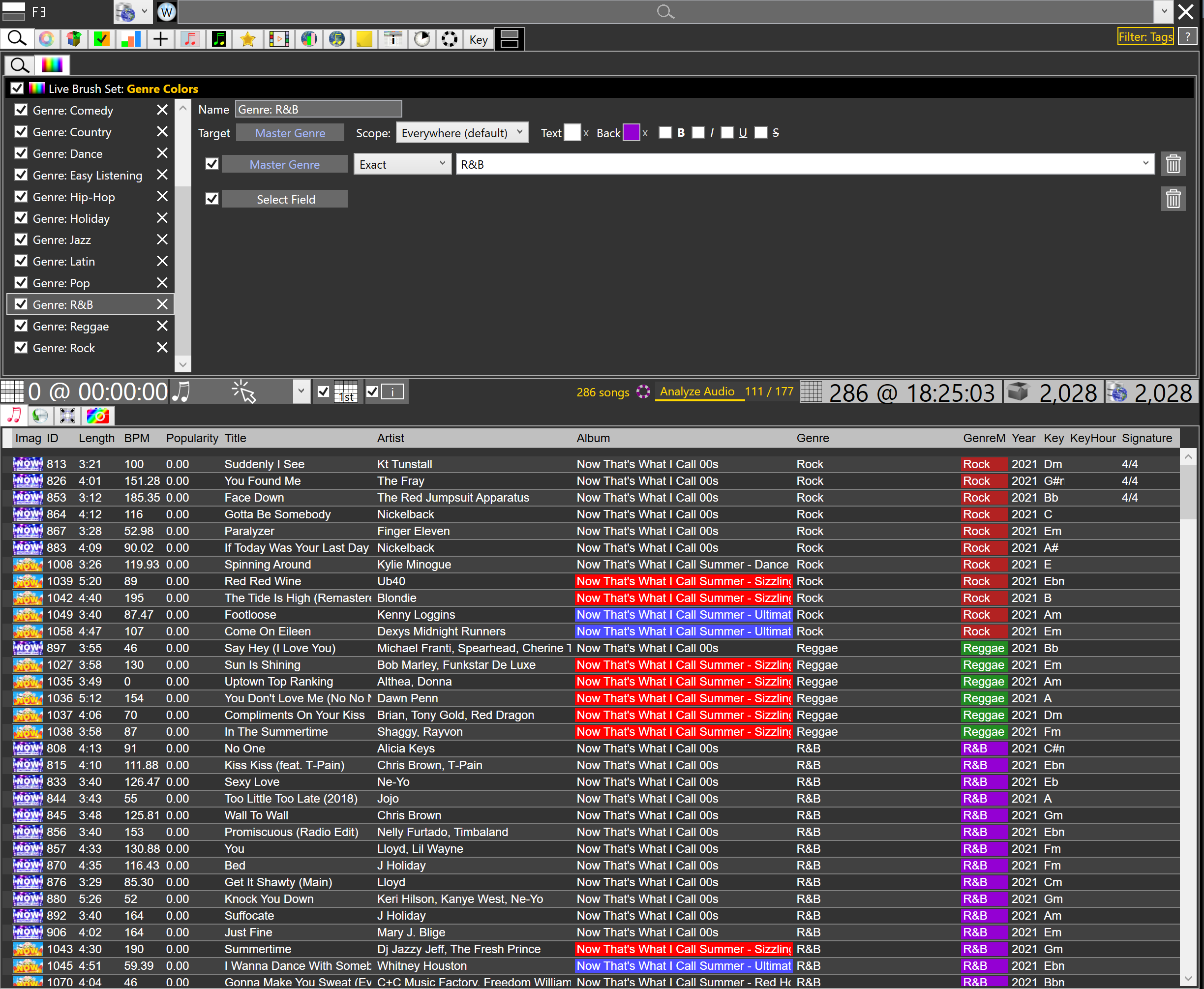
Where Filter Sets show and hide, Live Brushes highlight. A rule paints a cell or a row: Key, BPM, Master Genre, energy, anything you set. The list stays full. The colour is the information. Wizards or hand-built. On or off with one click.
A wedding DJ colours Master Genre so Motown is not the same brown as EDM. A mobile DJ colours BPM bands so 90 and 128 do not look alike at 1 a.m. See Live Brushes in Collections for the pictures and the tutorial clip.
Circle of Fifths or Open Key. The measure turns on when you select a key.
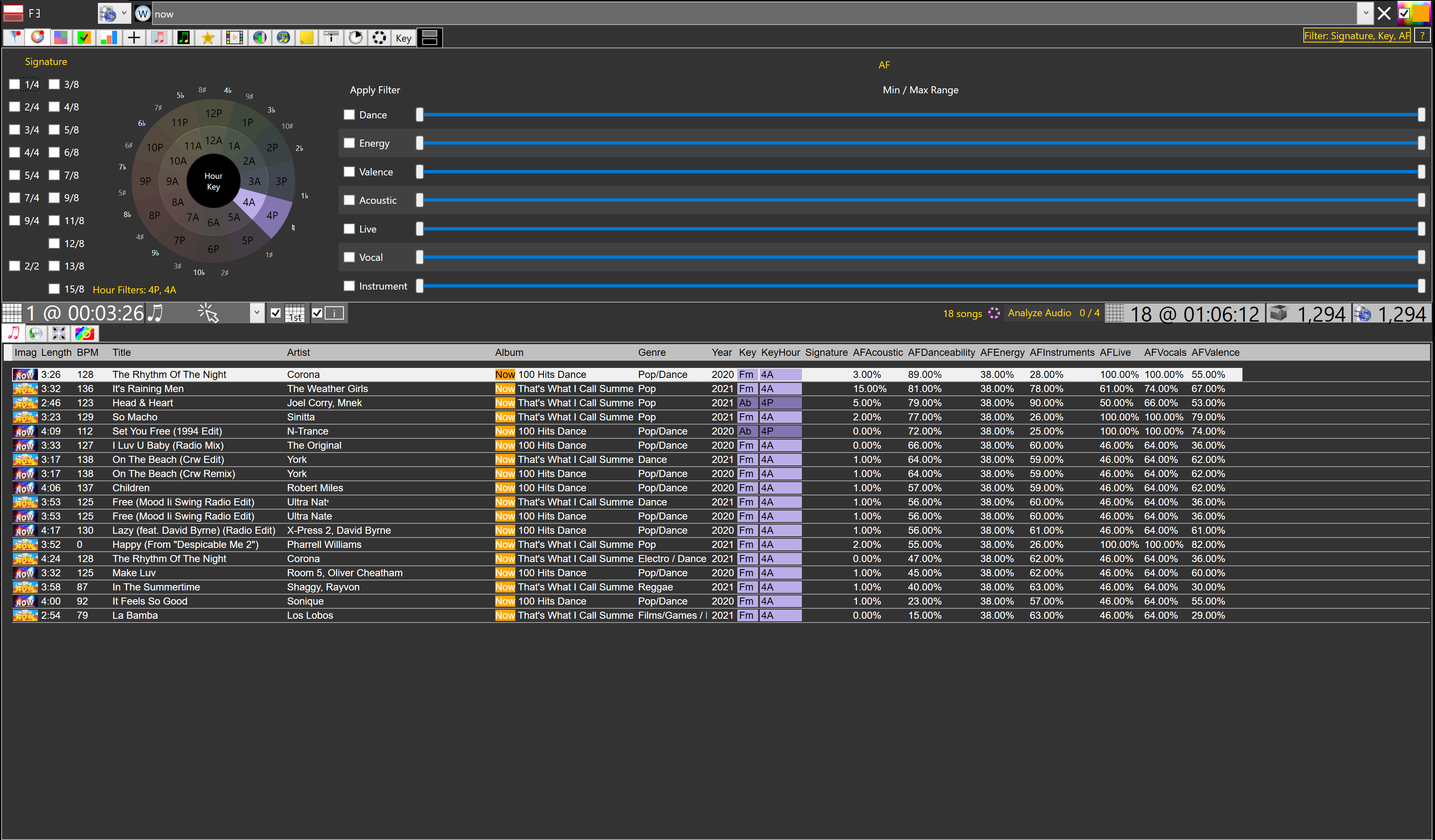
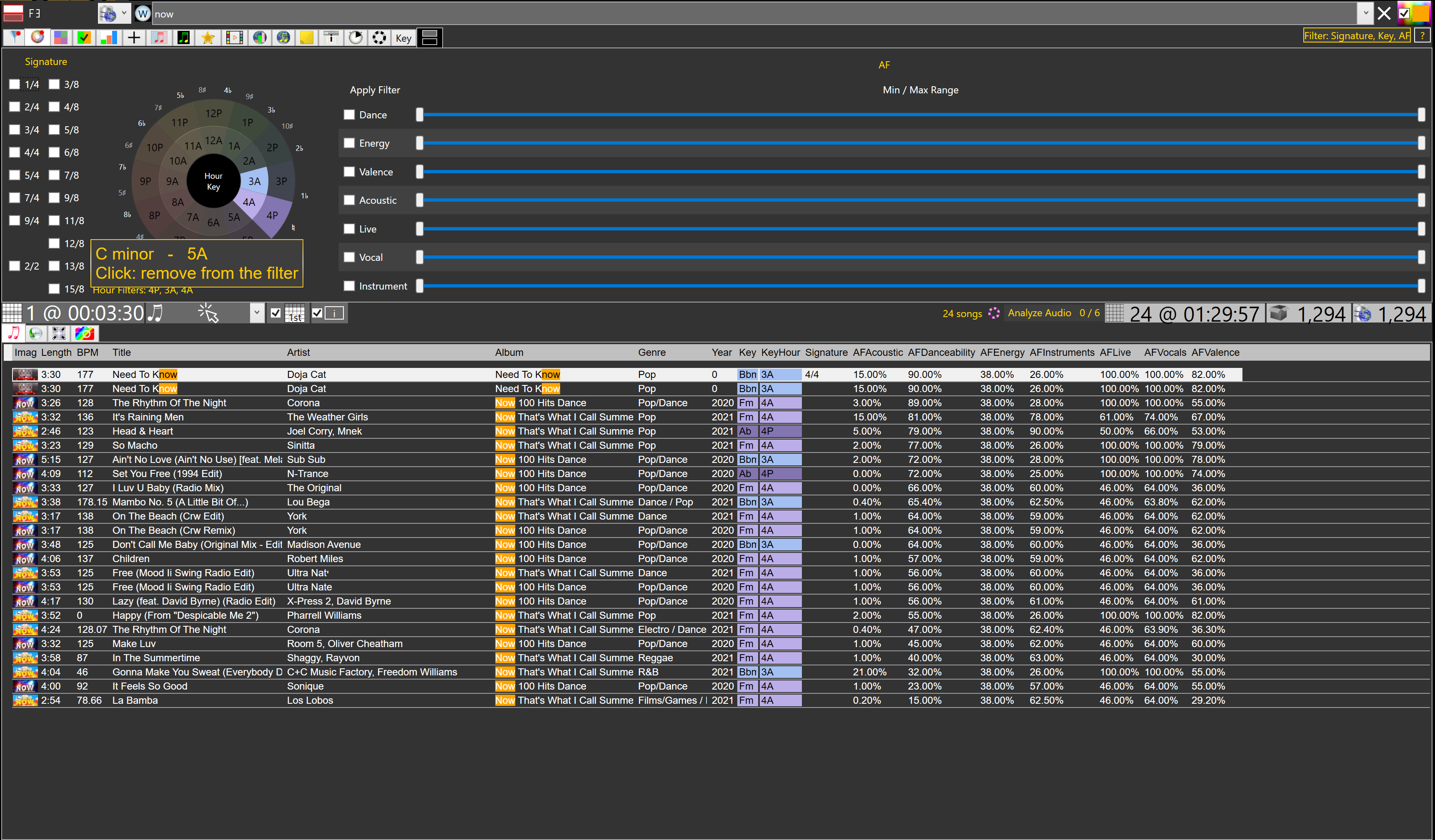
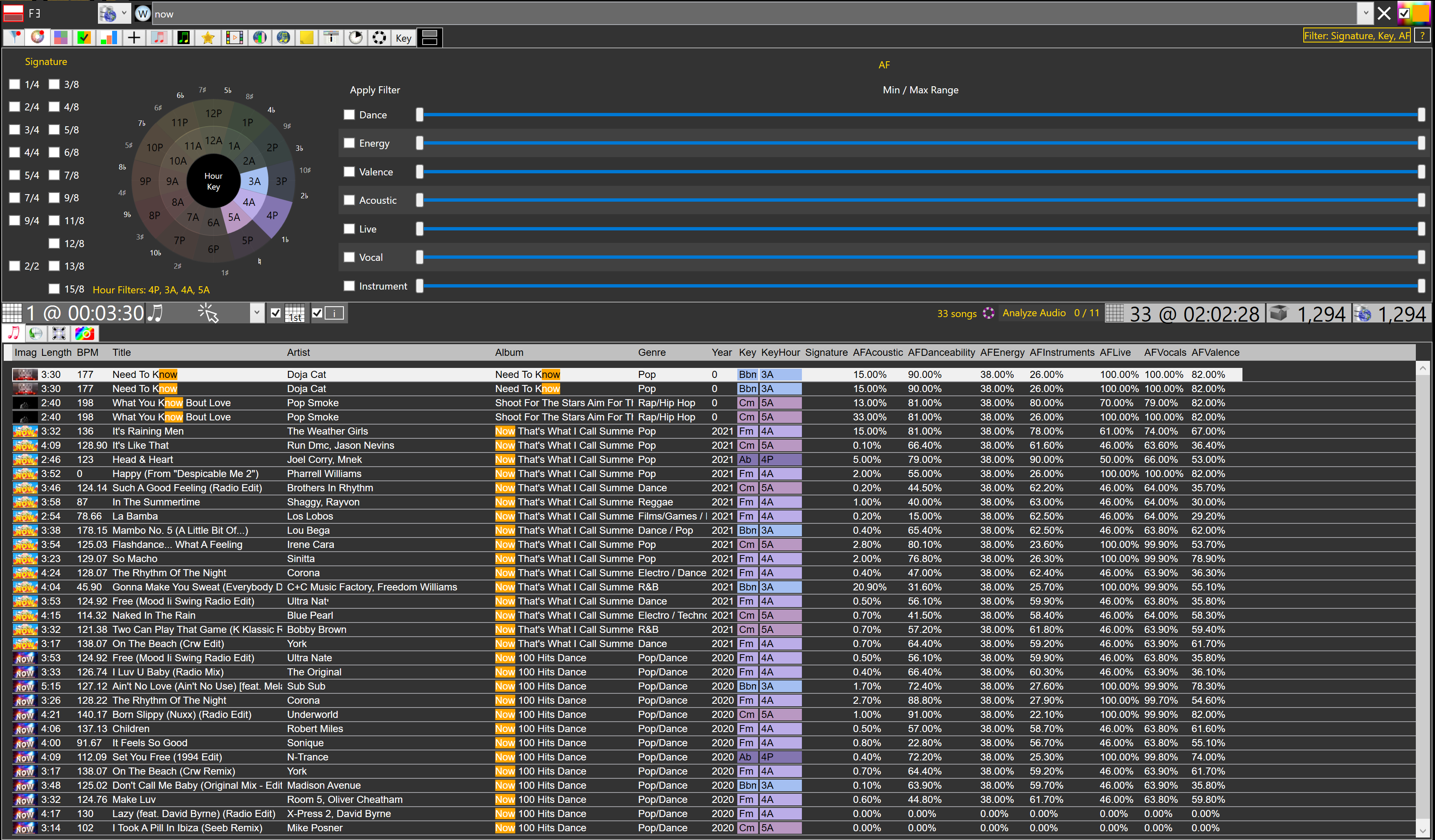
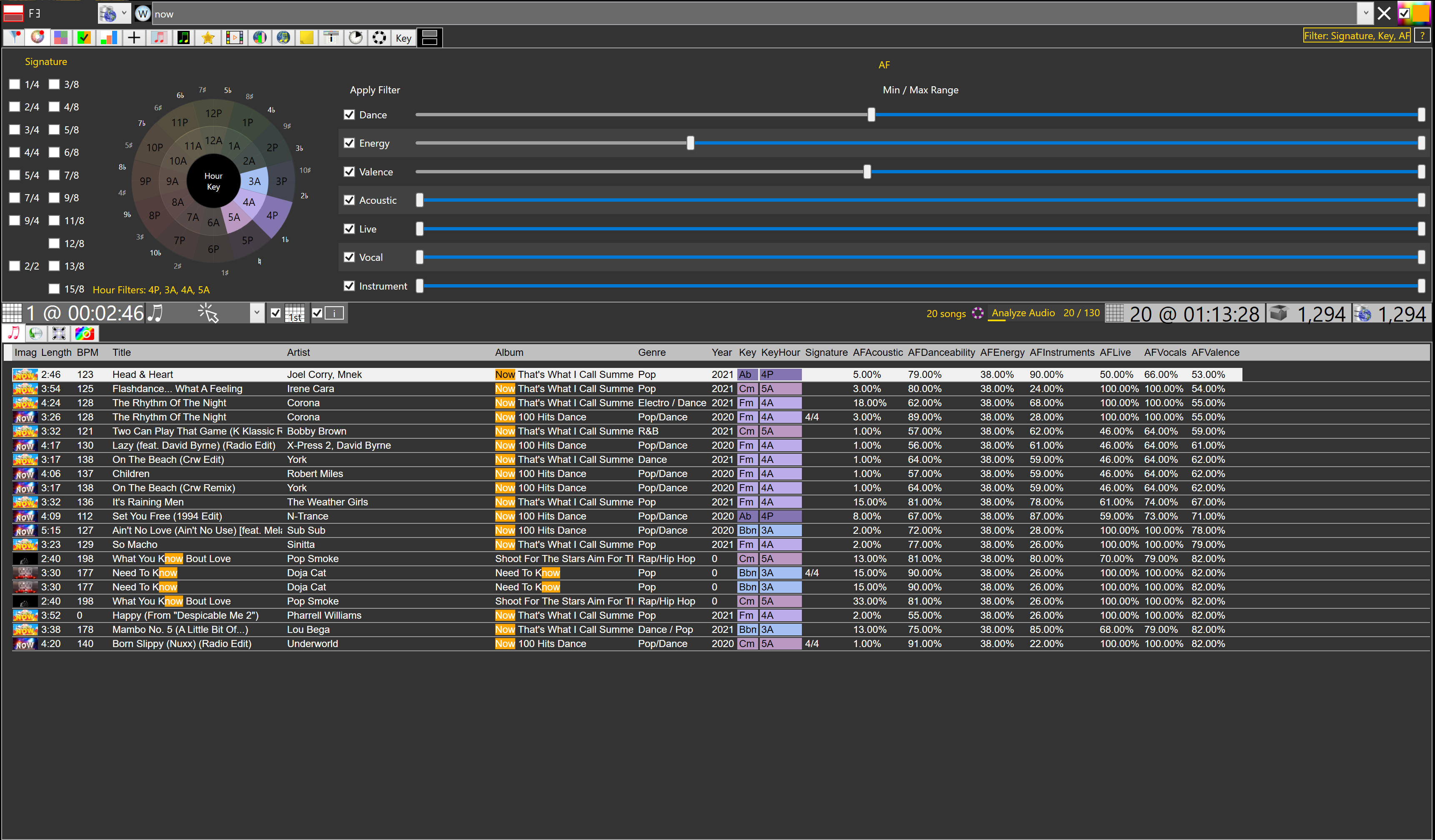
Side note: Live Highlight and Live Brushes for Keys are in effect.
A minimum and a maximum, from 0% to 100%, for Dance, Energy, Valence, Acoustic, Live, Vocal, and Instruments.
Filter by the signatures already analyzed.
The name Box Filter is narrower than the tool. It filters the library by boxes, playlists, sessions, and samples. It does this for a collection and for an event.
OR keeps songs that are in this item or that item. AND keeps songs that are in this item and that item. NOT removes songs that are in the chosen items. ADD brings those songs into the current results for this search only. ADD does not put songs into the collection.
The top left combo box picks the type: boxes, playlists, sessions, samples, or events. Choosing events lists the events in the combo box under it. Under that, pick the collection, or the event when the type is events. The list under that is the matching items. Select one and click a right arrow to filter that way. The right side is the OR, AND, NOT, and ADD items in use. The text box above the list searches the items. A checked row is in the filter. Uncheck it to drop that one item. A left arrow clears that whole list.
Collection View lists the boxes, filter sets, playlists, samples, and sessions of a collection, and the same kinds of items on an event. The left side is the collections. Checking a collection opens a panel. A type with nothing in it is left out of that panel. Data+.
Select songs in the library. Each item is colored from those songs. Lime, and checked: every selected song is in that item. Orange, and not checked: some of the selected songs are in it. Pink, and not checked: none of the selected songs are in it. The same pink is used when nothing is selected.
Check or uncheck a box, playlist, sample, or session to add or remove the selected songs. Filter sets are rules, not a list of songs. Their checkbox is only a readout of whether the selected songs match the rules. Clicking it does not add or remove songs.
Open Collection View. Check the collection or the event you want to see. Select one or more songs in the library. Read the lime, orange, and pink checkboxes. Check an empty membership to put the songs there. Uncheck a full membership to take them out.
Collection Browser is the third inner tab, the world icon on a green square. Select a song in the library. The tab lists every box, m3u playlist, session, sample set, event box, and event playlist that contains that song. It also lists any of those already set to OR, AND, NOT, or ADD, even when the song is not in them. A filter set is rules, so it appears only while its filter is on.
Each row is the same row that item uses in Collections or in Events: its icon, its name, its count, and its filter check, in the same colors. A box count is the songs still in that box. A playlist count is the songs in the file, and the file path follows the name. A session count is the distinct songs in that history, and All History counts every played song. A sample count is the songs in the set. An event box and an event playlist each show their song count the same way the event list does. A filter set count is how many rules it holds. A favorite mark shows where the collection row shows one. Text color follows the same item color or theme color that list uses.
Click the row to open it the same way as clicking it in Collections or Events. A box shows its songs. A playlist shows the file and its songs. A session shows that history. A sample set opens the sampler rack. A filter set opens its rules. An event box or event playlist shows its songs. Click the filter check to pick OR, AND, NOT, or ADD. That writes the original item. The collection list, the event list, and the filter panel change with it. Music Library and All Boxes are not listed. The tab stays on screen on every plan. With Data+ it fills. Without Data+ it stays empty.
A chart of the distinct values in a column of the songs currently in view. A relative item counts one field against another, such as how many distinct titles each artist has. Relative item Title, column Artist: each row is an artist, and the count is how many different titles that artist has. Relative item Artist, columns Album and Year: Album lists each album and how many distinct artists are in it. Year lists each year and how many distinct artists are in it.
In music mode the far right chooses the pool. Library results follow whatever the library is showing, after the filter. Entire collection is the songs before any filter or search. Click a row to set a filter for that value. Click the filter to change its type: Nothing does not filter, OR is the default, AND requires every chosen value, NOT excludes the value, ADD adds those songs to the results. The red x removes that filter.
Play counts of what a session actually played are Session Charts, the history icon inside this tab.
PC Browser is Free. The directory box follows the folder and can be typed. The box to its right searches the items in that folder. Add to active collection keeps the current folder on the collection so it can be opened again. Scan folder searches every folder underneath for songs, playlists, videos, and pictures. Double-click a folder to start that scan. Folder view can show read-only folders and hidden folders.
Auto filter has two targets. Folder filters the folder column, the last name in the path, as in d:\folder1\subfolder\{this}. Directory filters the directory column, the full path, such as d:\folder\subfolder.
Named, color-coded lists sit beside the library. A new install shows Side List and Requests. Free keeps the two lists already on screen. Any paid plan adds more lists. Data+ and Everything+ open the second column and add lists there. Audio+ and Internet+ cannot reopen a hidden second column or add a list into column 2.
Select a song. See songs close to it by the rules you set: year, BPM, column, Sound Match, and key. The year, BPM, column, and key rules are Data+. Sound Match is Audio+. The same panel can also filter by boxes, sessions, playlists, and event boxes, combined as OR, AND, NOT, or ADD. Harmonic mixing.
The sampler is Free. Custom sets of one-shots and loops. Load a set. Play in sync with the playlist's current song, or alone. Loop, one-shot, hold. Stems, FX, and hot cues on a sample are Audio+. Power Commands can fire a sample slot at the end of a song.
Select a picture or a video and the Media Player loads it. The tools tab stays where the DJ left it. The player is Free. The stem view is Audio+.
Power Charts, Apple, Spotify, Deezer, ListenBrainz, and Last.fm. Power Charts is PowerBox DJ's own list of playlists and songs. Apple Charts is a country's top chart. Spotify is the public playlists of Spotify users. Deezer is Deezer charts, or a Deezer playlist added by playlist id. ListenBrainz and Last.fm are further chart lists. PowerBox DJ shows which of those songs you already own.
Select a song. Compare it with AcoustID, MusicBrainz, Apple, Spotify, Deezer, Genius, and Discogs. AcoustID listens to the file. The other sources look the song up by name. Genius stays off until the DJ includes it. You pick the artist and title.
A Spotify or MusicBrainz row can include Popularity as a percent. That percent is stored on the song only when that field is one of the fields the DJ applies. There is no separate Popularity screen. Popularity Lookup is Internet+, the same plan as this lookup.
The note page is Free. Write notes against the open collection. Each line can show its first match, or become a one-click search. Using the note as a filter or as a list of searches is Data+. Opening and saving a raw m3u playlist is Data+. Event notes are Event Manager.
Watches are Free. Every plan can add one. Watches count up. Timers count down. They are clocks with slots: Watch 1, Timer 1. Power Commands in a playlist can start, stop, reset, or start-reset a slot at the end of a song — “time this track,” “hard out in twenty.” Unbound commands (you deleted the clock) paint red; double-click restores the slot. Favorite folders that auto-add new files are Folders in Collections, not these clocks.
* Subscription required.