Full Audio Player (fPlayer)

Full DJ Deck with Analysis for: Dynamic Beatgrid, Key, Musical Signature, Structural, Sound Waves, and Stems.

Hot Cues, Loops, Rolls, Quantize/Block Seek, Slips, Beat Sync, Beat Juggle, Beat Slicer, Lyrics Slicer, Stems Separation, BPM adjust, Key adjust, chain FX, Deck control for Stems, Karaokee maker, Counter for: Beat, Bar, and Phrase, Customizable SoundWaves, and more.

Dynamic Beatgrid Analysis

Name Function
C Constant One even grid for the song.
V Variable Tempo can move. The grid follows as the song plays.
A Auto Detect C or V.

Music Signature

The most essential tool for proper beat juggling is based on the musical signature.

It sets the beats, bars, and phrases so loops, jumps, and slicers land on the correct beat of the music.

Works with Dynamic Beatgrid Analysis. C even grid. V moving grid.

Beat Slicer

Beat Slicer produces Beats, Bars, and Phrases based on the Music Signature of the Song and C / V BPM.

Beat slicers show you the current beat as well as let you use each beat as hot cue.

SoundWave

See soundwaves and understand what it means.

You can customize how each stem soundwave will show on the soundwave.

Beats, Bars, and Phrases will appear based on the Music Signature and C / V BPM.

Beats are in black, Bars are in Blue, and Phrases are in Red.

Lyrics Slicer

Seek or slip-seek to a word the same way you hit a hot cue.

Cut on the lyric, not only on the beat.

Scratch+

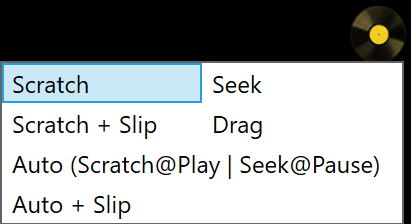
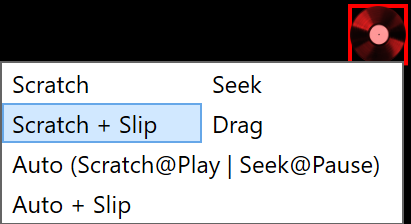
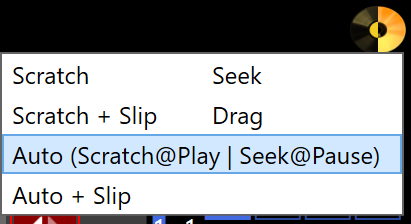
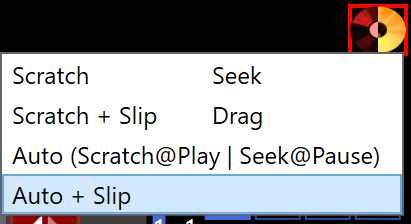
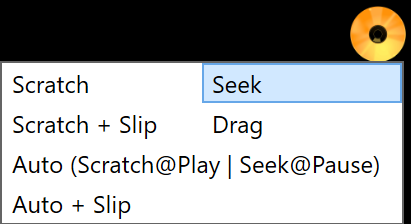
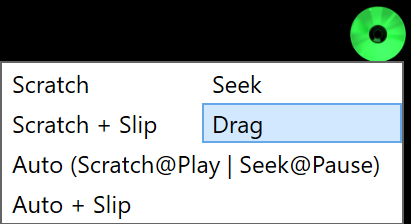
Jog modes: Scratch, Scratch + Slip, Auto, Auto + Slip, Seek, Drag.

Vinyl when you want it. Seek when you do not.

Slip sends you back to where the song would have been.

Jog Icon Function
Scratch Gold Vinyl Regular Vinyl Scratch.
Scratch + Slip Red Vinyl with Red square around it Vinyl Scratch and resume to original song position.
Auto half Gold Vinyl, half Gold CD If Playing, then Scratch.
If Paused then Seek.
Auto + Slip half Red Vinyl, half Gold CD with Red square around it If Play, then Scratch + Slip.
If paused, then seek.
Jog Icon Function
Seek Gold CD Move forward or backward without scratching.
Drag Green CD Temporary Seek with retro scratch sound.

Censor (Reverse Slip Play)

Temporarily play track in reverse with slip to censor context.

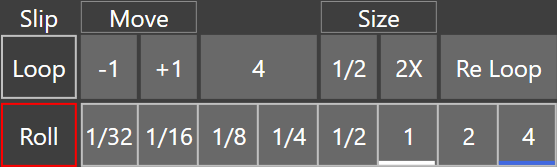
Loop

Looping based on Music Signature and C / V BPM to set correct beat loops.

Loop Roll: Press and hold a Loop Roll then move right to double it, or left to half it without letting go. Default for Roll is Slip.

You can turn on/off Slip for Loop independently at any time.

You can turn on/off Slip for Loop Roll independently at any time.

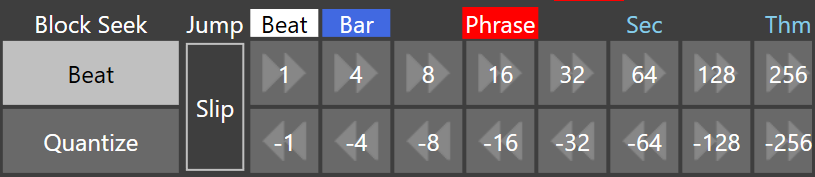
Beat Juggle

Music Signature and C / V BPM set the beats a skip will perform.

A different Signature or a Variable grid will cause a different amount.

You can turn on/off Slip for Beat Juggle independently at any time.

Beat Sync

Sync the BPM of any player to the Active Main Player.

Follows C / V BPM of that player.

Hot Cues

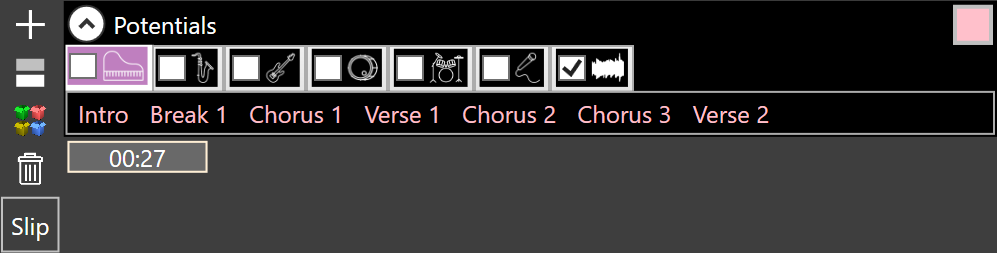
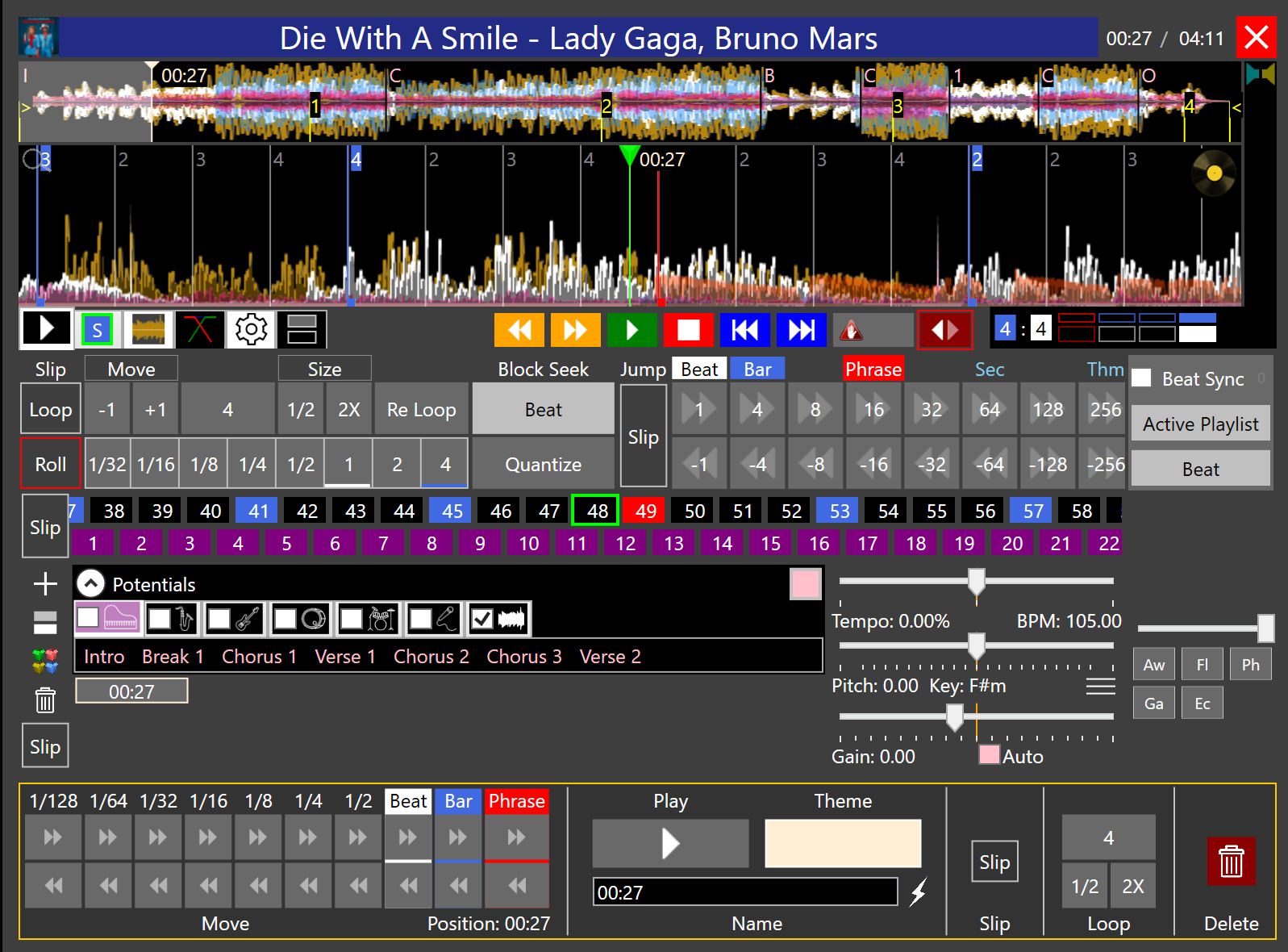
PowerBox DJ brings to you a powerful set of tools for Hot Cues. Potentials: Show analyzed structure per stem as well as for the entire track. Add Hot Cues, Edit Hot Cues, Clone Hot Cues, Delete Hot Cues, and turn on Hot Cue Slip for temporary seek.

Hot Cues Editor: Show/Hide with 1 Click. Move the Hot Cue position with 1/128 precision based on Music Signature and C / V BPM. Test the hot cue with the Play button. Set a color for it with the Theme button. Give it a name. Then add optional Slip. With Slip, a Hot Cue will only play that Hot Cue position while held down, then resume. Add optional exact Loop measure based on Music Signature and C / V BPM.

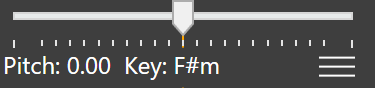
Key adjust (Pitch Shift)

Change key.

Pitch shows the shift.

Key shows the result.

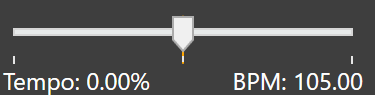
Speed adjust (Tempo Shift)

Change speed.

Tempo shows the shift.

BPM shows the result.

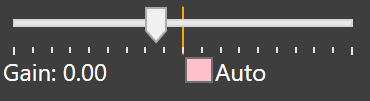
Gain

Normalized level.

Set it by hand or turn Auto on.

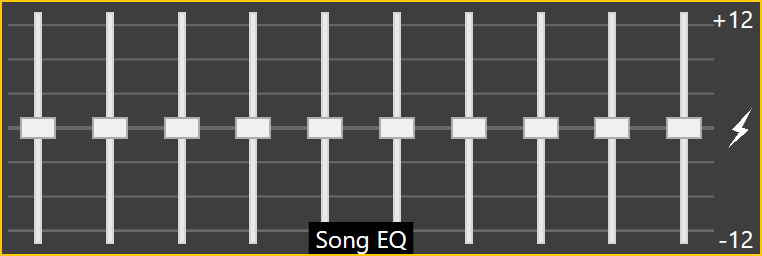
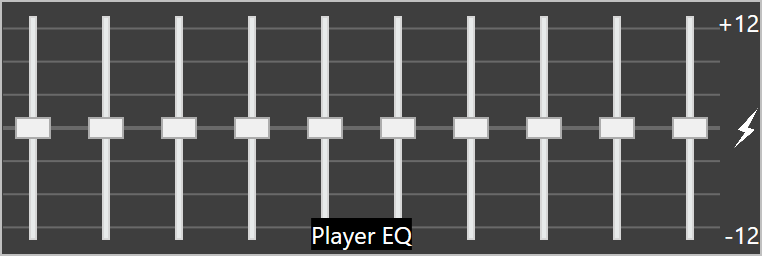
Equalizers

10 Band Equaliser for each Song with Song EQ. Preset EQs in the menu.

10 Band Equaliser for the device with Player EQ. Preset EQs in the menu.

Lyrics+

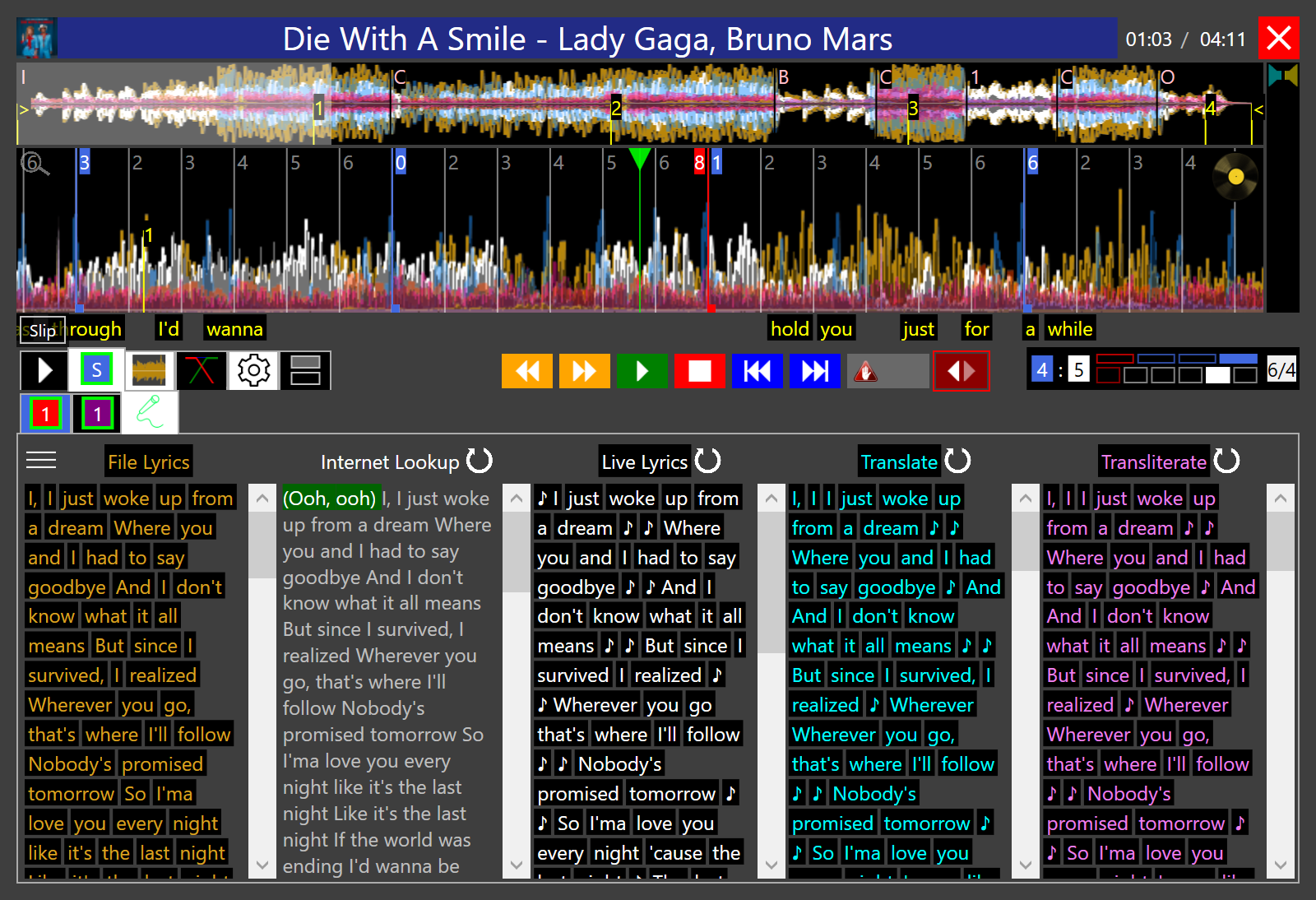
There are 6 types of lyrics for each song.

  • File lyrics are the words to a song stored in the file itself. This can be found in the lyrics tag.
  • Internet lyrics are looked up from the internet with the Internet+ package. Internet lyrics are the most accurate lyrics of a song.
  • Live Lyrics is an AI engine that listens to the words of the song (ideally from vocal stem), and attempts to provide an output of each word with a time stamp of when that word is heard.
  • Lyrics+ takes the best of the three lyrics and outputs them to the screen as scrolling lyrics to match the soundwave.
  • Translate: Convert the words of any language to any language.
  • Transliterate: Learn how to say any word in their original language.
Lyrics+

Karaokee+

Load Karaokee songs to play and see the words highlighted.

None-karaokee songs can still use as karaokee with Stems+ and Lyrics+.

Enable Stems and lower the volume of Vocals.

Use Lyrics+ to see the words and their countdown.

Stems Separation

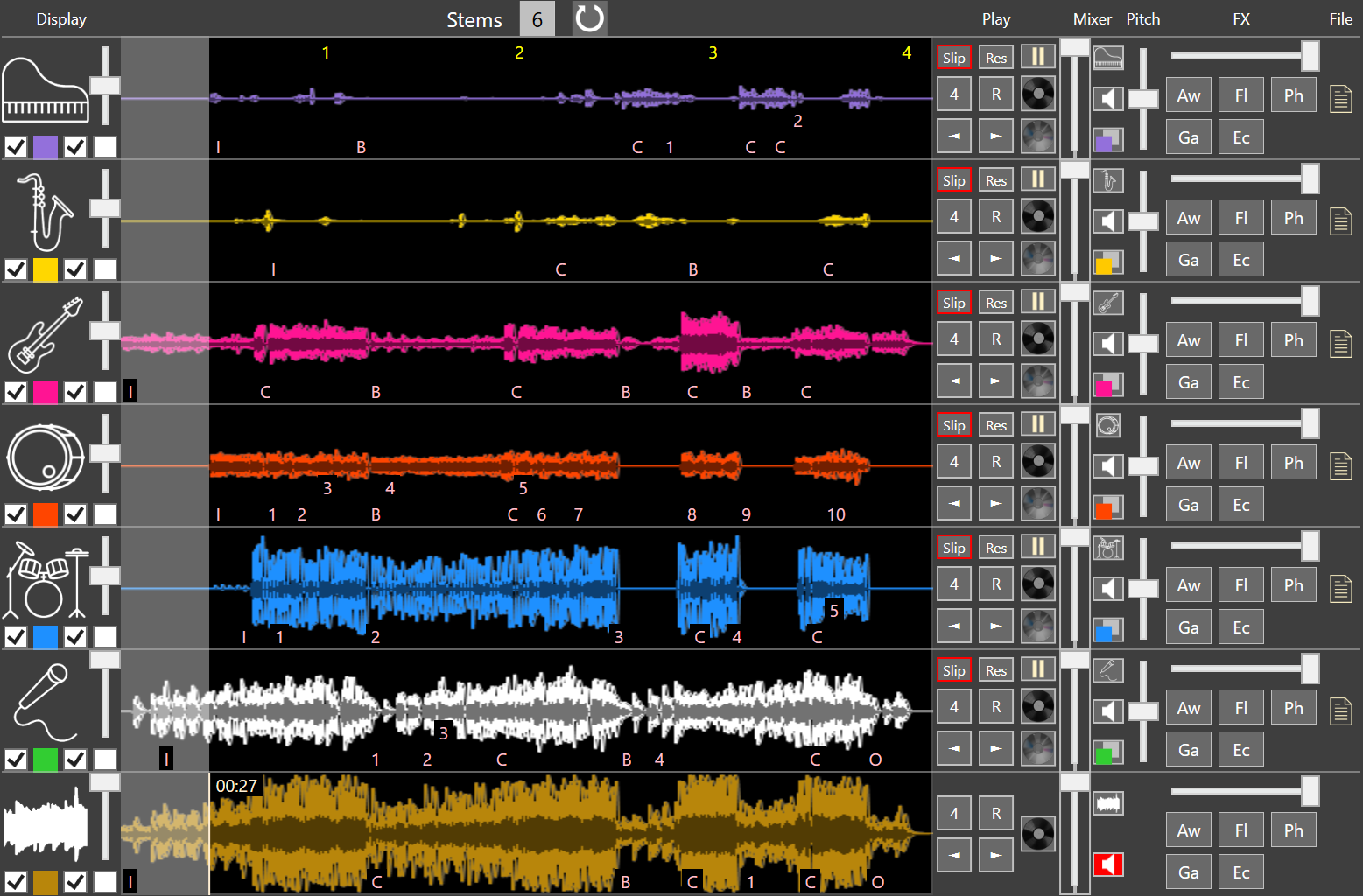
Stem Separation unlocks DJ creativity with abilities to Solo, Mute, or add effects. PowerBox DJ's Stem+ adds even more features. First, it outputs a visual representation of all the stems relative to one another. Each stem gets a structural analysis as if it is a song all by itself. 1,2,3,4,5 represent a verse, I is short for Intro, C is Chorus, B is Break and O is outro. This alone is a great tool for individuals learning to understand music. This feature literally gives you an easy to understand visual representation of each stem. You can see where the stems are active and you can also see Volume and RMS of each stem as well by simply looking at the soundwave.

Stems Separation

Each stem gets its own soundwave with its own structural analysis.

Stem soundwave

Each stem can be set a color, seen in the overview, zoom, change the transparency, and auto change transparency based on volume.

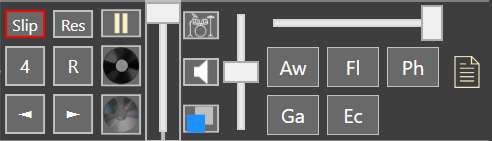
Each stem gets its own play control.

Pause: pause/play the stem.

Resume: resume alignment with the track as a whole.

Slip: enable this maneuver temporarily. Default slip is turned on, so any maneuvers will only be a temporary effect.

Loop and ReLoop are used in sync with the musical signature.

To set a stem position: enable Stem Seek (CD). You will see the overview show only that stem color. You can select as many stems as you want at the same time. This will set all seek control to apply only to that stem. You can use the Overview or go to the play control to use the beat slicer, loops, hot cues, etc. to control that stem individually.

To scratch a stem: enable the Stem Scratch (Vinyl). Only 1 stem can be scratched at a time. When stem scratch is enabled, the vinyl will turn red and the Scratch Zoom will show only that stem color.

Stem Volume: Set volume to the stem relative to the other stems

Solo: Silence all other stems so this stem will be heard alone.

Mute: reduce the volume of this stem alone to 0.

Clone: A cloned stem is like any other stem. You can enable seek for that stem then loop something over and over while the rest of the song plays. The possibilities are endless once you learn how to use this feature.

The Stem Pitch allows you to change the Key of that stem with high accuracy.

Stem FX are audio effects selected to be visible in the fPlayer settings. once set, they follow through to all Player. turn on/off with a click, and use the slider to change their effect on the stem.

To drag a stem file to another app, click and drag the file icon

Stem play controls

Customized SoundWaves

Per stem color soundwave in any order you want.

FX

Chain audio effects.

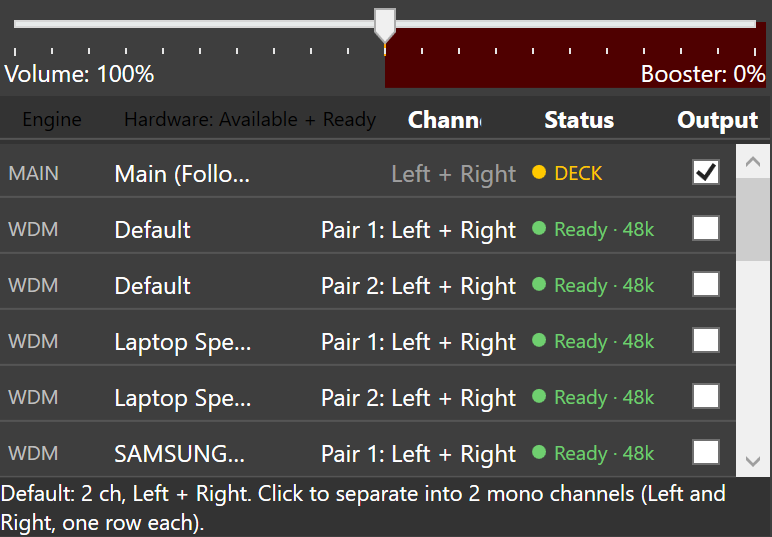
Matrix Device Output

PowerBox DJ allows you to output to any device whenever you want and to as many devices as you want to.

It supports the three types of device outputs: ASIO, WDM, and WASAPI.